




How to Use Insights
How to Use Insights
Insights help you analyze spending to spot changes and understand patterns. You can adjust which expenses are included, explore spending trends from different perspectives, and open the underlying expenses in Spend for further review.
For an introduction to the available insights and what they show, see Learn About Insights.
Where to find Insights
In the navigation tabs (on the left on web, on the bottom on mobile), select Insights.
Insights displays spending visualizations based on your permissions and workspace configuration.
How to filter insights
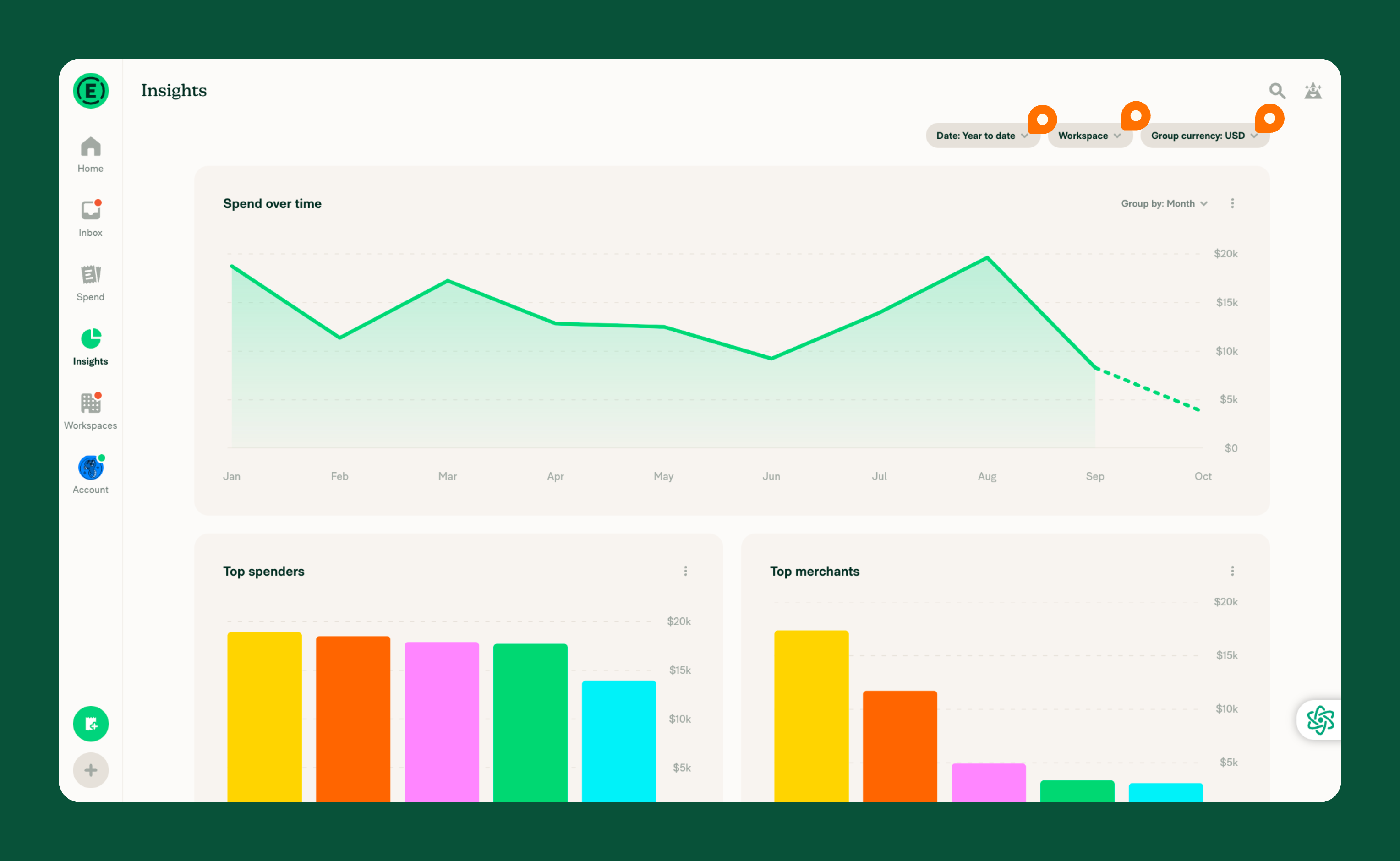
You can adjust the data shown across Insights using three shared filters:
- Date: Choose the period you want to analyze.
- Workspace: Choose which workspace expenses to include.
- Group currency: Choose the currency used to group spending amounts.
These filters apply across all insights, allowing you to compare spending trends, merchants, categories, and members using the same date range, workspaces, and currency.
How to explore expenses from an insight
Insights summarize spending data, while Spend lets you review individual expenses and analyze spending in more detail.
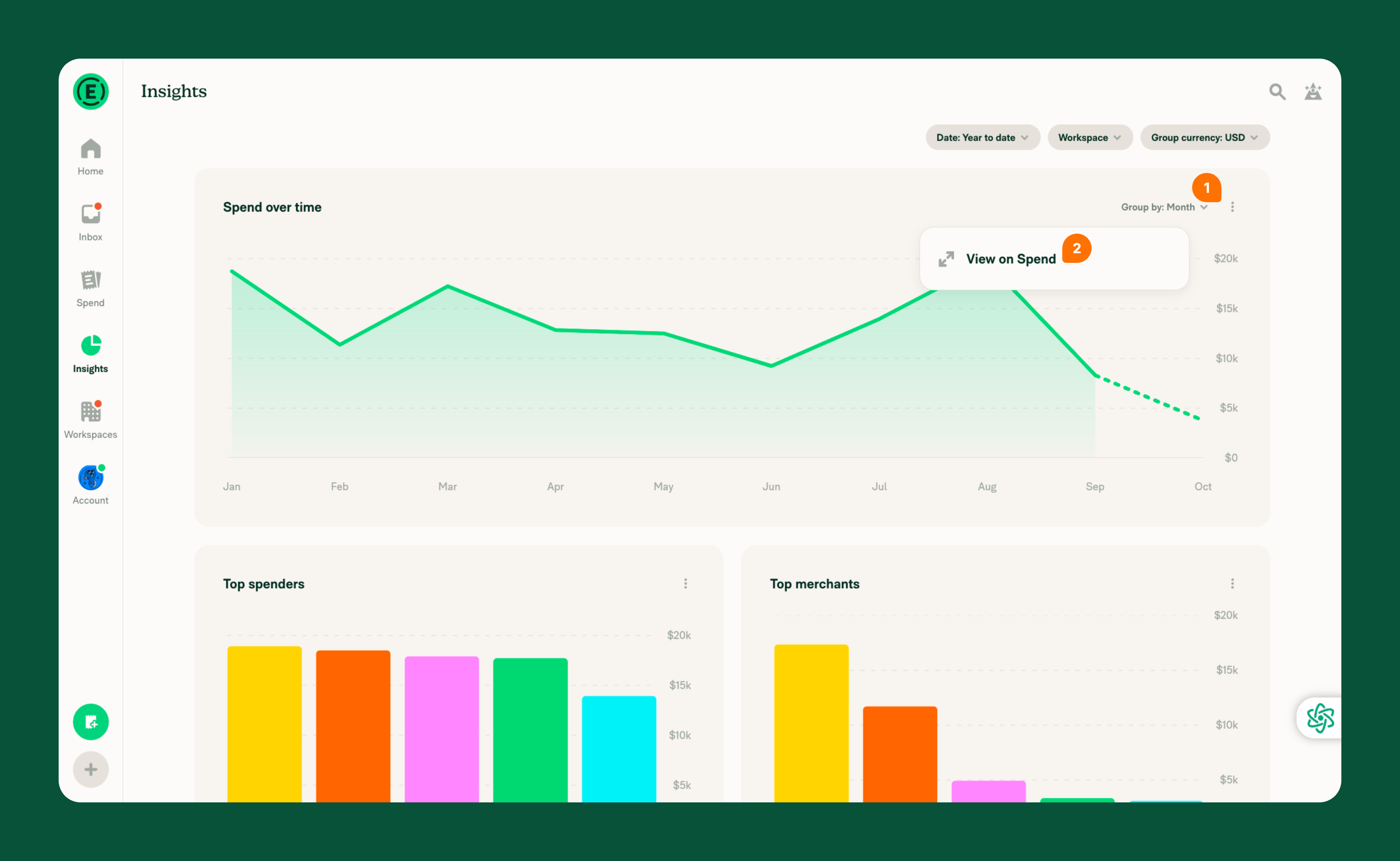
To explore the expenses behind an insight, select More (⋮) on the visualization, then select View on Spend. This opens the related results in Spend, where you can review individual expenses, apply additional filters, and use grouping options to analyze spending from different perspectives.
Learn how to use search operators to analyze spend.
How to change how insight data is displayed
Each insight uses a predefined visualization to highlight spending patterns. To explore the same expense data in a different format, open it in Spend, where you can switch between bar, line, pie, and table views.
The available views are:
- Bar chart: Helpful for comparing spending amounts across members, merchants, or categories.
- Line chart: Helpful for identifying changes and trends over time.
- Pie chart: Helpful for understanding how spending is distributed across groups.
- Table: Helpful for reviewing grouped spending data across rows and columns.
To display the expense data in a different view:
- On the insight, select More (⋮) > View on Spend.
- Select Display > View.
- Choose the view you want, then select Apply.
How to save a customized search from an insight
If you regularly review the same spending data, you can save a customized search in Spend. Saved searches let you return to a particular combination of filters and grouping options without rebuilding the search each time.
You can start with an insight, open its results in Spend, and customize the search to match your reporting needs.
Learn how to create a saved search.
How to export insight data
Insights summarize expense data, but grouped totals and chart summaries cannot be exported directly.
To export the underlying expenses, open the related results in Spend and select the individual expenses you want to export. This lets you download expense-level data for additional analysis or reporting outside Expensify.


