




Explore the Spend Over Time Insight
Explore the Spend Over Time Insight
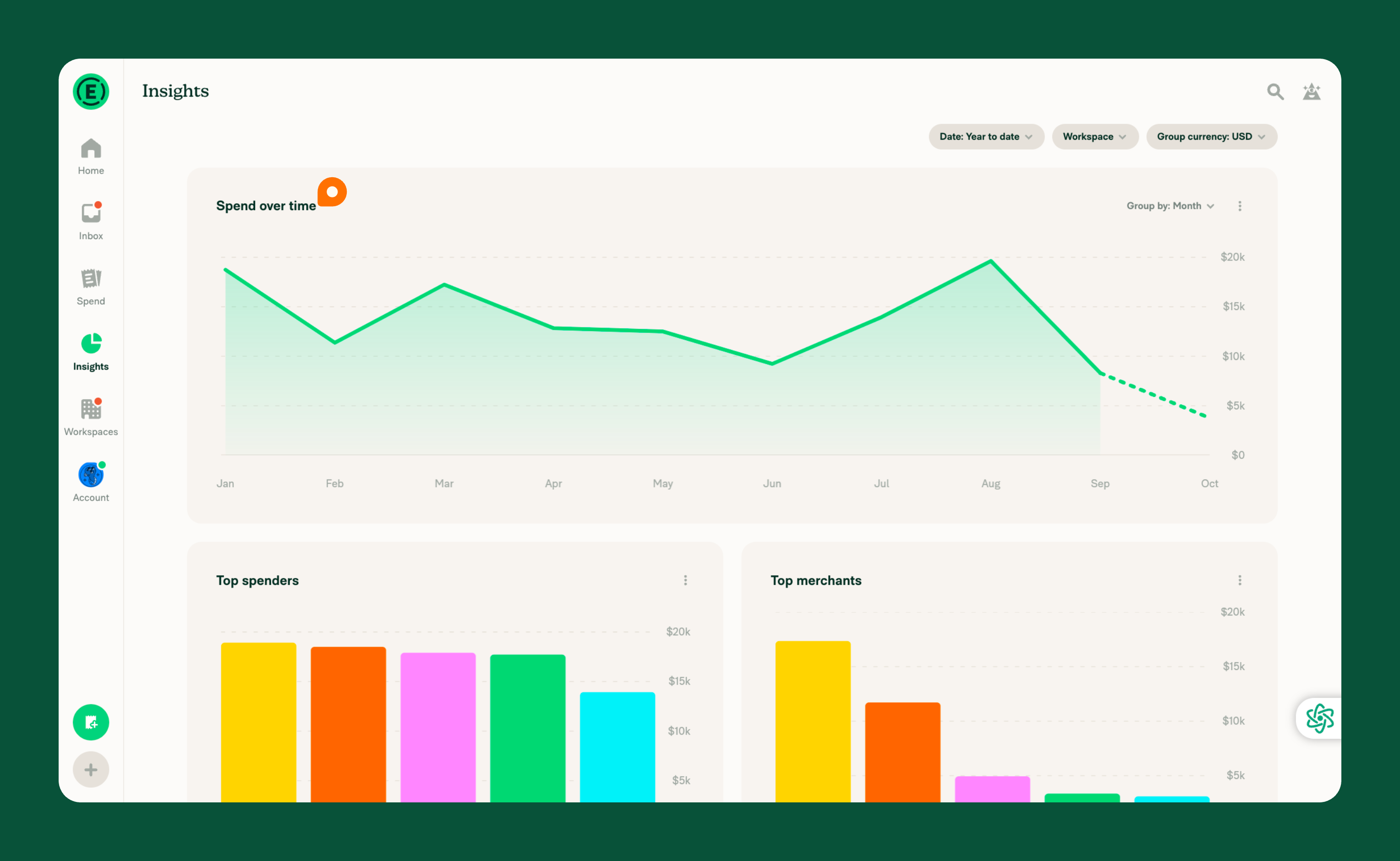
Spend over time shows how total expenses change over a selected date range, helping you identify spending trends, increases, and decreases.
You can use Spend over time to:
- Monitor overall spending trends.
- Identify unusual increases or decreases in spending.
- Compare spending across days, weeks, months, quarters, or years.
- Spot recurring or seasonal spending patterns.
- Support budgeting and forecasting decisions.
What Spend over time shows
Spend over time displays spending trends as a line chart, making it easy to see how spending changes throughout the selected date range.
Each point on the chart represents a time period. You can view:
- Total spend: The combined amount of expenses during that period.
- Percentage of total spend: The period’s share of overall spending.
- Number of expenses: How many expenses contribute to the total.
This makes it easier to identify periods with unusually high or low spending and compare spending patterns over time.
Who can see Spend over time
Spend over time is available to all members.
The expenses included depend on your permissions:
- Workspace admins and auditors can see expenses across their workspace.
- Approvers can see expenses submitted to them.
- Members can see their own expenses.
You won’t see expenses you don’t have permission to access.
How Spend over time is calculated
Spend over time groups expenses by time period and calculates the total spending for each period.
Results include expenses within the selected date range that you have permission to view. Amounts are displayed using the selected Group currency.
Spend over time includes a Group by option that lets you change how expenses are grouped along the timeline.
The available options are:
- Day: View daily spending changes.
- Week: Compare spending across weeks.
- Month: Track monthly spending trends.
- Quarter: Compare spending across quarters.
- Year: Review annual spending trends.
Month is selected by default.
To change the grouping:
- On the Spend over time visualization, select Group by.
- Choose Day, Week, Month, Quarter, or Year.
- Select Apply.
The chart updates to show spending grouped by your selected time period.
The Date, Workspace, and Group currency filters are shared across all insights, allowing you to adjust which data appears.
How to explore Spend over time
Spend over time displays spending across the selected date range, grouped by your chosen time period.
To explore the underlying expenses, select More (⋮) on the visualization, then select View on Spend. This opens the related results in Spend, where you can review individual expenses and analyze spending in more detail.
Learn how to explore expenses from an insight.
Related articles
FAQ
Can you export Spend over time?
Grouped totals and chart summaries can’t be exported directly from Spend over time, but you can export the underlying expenses from Spend.
What other insights are available?
Additional insights help you analyze spending from different perspectives:
- Top spenders shows which members have the highest total spending.
- Top merchants shows which merchants account for the most spending.
- Top categories shows which expense categories account for the most spending.
Learn more about the available insights.
Why is an expense missing from Spend over time?
An expense might not appear if:
- You don’t have permission to view it.
- It falls outside the selected date range.
- It belongs to a workspace excluded by the Workspace filter.
To review the underlying expenses and apply additional filters, select More (⋮), then View on Spend.


